Showing posts with label computer. Show all posts

Wednesday, June 04, 2014

Free games from EA - Origin on the house deals

By now most of us know what Valve's Steam service is. It's a gaming platform that provides a game store, mods and customization sharing platform, along with a social network complete with screenshot and screen capture sharing. Valve has refused to release actual data, but it is rumored that Valve owns the majority of the gaming market on Windows, Mac OS X, and Linux combined. Although small and unheard of, Origin is the largest competitor to Steam. Steam owns the market with an all-in-one package of a social network and game store. Plus they have insane deals going on all the time. They even have their own in-home streaming service (read more here). EA saw this as a major challenge. They needed to get attention back to Origin. But how do you beat insane deals that sometimes can shave 90% of the original price? Give away games for free. Yes, EA is giving games away for free. And it's not sweepstakes or links to piratebay. They are giving away free EA branded games to anyone who wants them. EA announced On The House Deals back in may and has been giving away 1 free game ever since. They only do one title at time. Recently some major ones include Dead Space and Plants vs. Zombies Game of the Year Edition. You have to act fast though, EA says on their website: "...On the House specials can appear and disappear at any time". EA says on the website "... [EA's on the house deals are] a fantastic way to see what Origin is all about." So obviously this is a big promotion to move people away from Steam. In my experience, I just download Origin to claim and download the game, then I add it to steam as a non-Steam game. That way people can see what I'm playing, but I can still take advantage of EA's on the house deals. You can bookmark https://www.origin.com/en-us/store/free-games/on-the-house or just check our Twitter feed (see below) to get updated when a new game comes out.

Hey blog readers! If you want to follow our meaningless updates, check out our pages here:
Facebook: http://on.fb.me/U9s2Ld
Twitter: Follow us @allstuffnerdy
Google+: https://www.google.com/+AllstuffnerdyBlogspot
If you have a business you would like us to mention at the beginning of a post, check out our gigs on Fiverr:
Joshua: http://fiverr.com/armmaster17
Brandon: http://fiverr.com/maltzy
Spreadshirt: http://allstuffnerdy.spreadshirt.com
Check out our SpreadShirt shop for our awesome selection of geeky apparel. We offer Mens, Womens, and kid sizes of T-shirts, Long-sleeve shirts, and hoodies in addition to coffee mugs and more. Check out our store here: http://allstuffnerdy.spreadshirt.com

Nvidia shield - Overview

Ever wish you could play your graphic-intensive games on the go? Mobile technology is achieving higher clock speeds at a rapid pace, but it is nowhere near as fast as desktop computing hardware. Not to mention that they lack the room to allow for proper cooling. Nvidia has found a potential solution. They created the Nvidia Shield.

For those not familiar with the company, Nvidia is a large graphics card manufacturer that owns about 62% (tekrevue) of the GPU market. Not to mention that Nvidia has created some of the fastest GPUs ever made. So they already have a large base of gamers to test with. They took note of how lots of people use their mobile devices for games (usually not hardcore 3D gaming, but gaming in general). So they created a device that could play top-of-the-line games with bottom-line hardware. The whole system relies on the user owning a computer that has a supported Nvidia GPU (most Nvidia GPUs made in the last two years should be fine). Then using the Shield, they can pick any game from their library. The game will launch on their computer and the computer will stream the screen to the Shield. The Shield will also send back key presses to the computer to interact with the game. Essentially, it's just a fancy way to remote-control your computer playing a video game. The Shield supports sending 60 FPS @ 1080p over either Wi-Fi or Ethernet (Ethernet is faster). Recently Nvidia has announced that it will be supporting streaming over the internet, so you are no longer tethered to your home network. The Nvidia Shield itself runs Android on a 1.9 GHz quad core ARM processor called the Tegra (which is also manufactured by Nvidia). It has 2 GB of RAM and a 1280x720 IPS Retina display. The Retina part of it means that it has more pixels per inch than the human eye can tell apart, so the images look more realistic. It was released at $299 USD but has since dropped down to $199 USD. Overall it seems like a reasonable device, but the price tag of the Shield and a compatible Nvidia GPU is overkill. But if you like to play your games almost every waking moment of your life, it may be worth considering. Recently a lot of competitors have released their own version of Nvidia's streaming service (read my article on the Steam streaming service here).

3 reasons you should get it:
1)You can stream your games to play on the go.
2) You will soon be able to stream your games from anywhere in the world.
3)It runs android, so it can function like a normal Android tablet (without calling or SMS)

3 reasons you should not get it:
1)It carries a heavy price tag
2)It requires a fast computer and internet connection to function properly
3)Most people don't have a use for this. They like their giant screen that they play games on.

So ahead and leave a comment below, what would you use the Nvidia Shield for?

Sources:
http://www.tekrevue.com/nvidia-takes-62-of-discrete-gpu-market-share-in-q2-2013/
http://en.wikipedia.org/wiki/Nvidia_Shield

Hey blog readers! If you want to follow our meaningless updates, check out our pages here:
Facebook: http://on.fb.me/U9s2Ld
Twitter: Follow us @allstuffnerdy
Google+: https://www.google.com/+AllstuffnerdyBlogspot
If you have a business you would like us to mention at the beginning of a post, check out our gigs on Fiverr:
Joshua: http://fiverr.com/armmaster17
Brandon: http://fiverr.com/maltzy
Spreadshirt: http://allstuffnerdy.spreadshirt.com
Check out our SpreadShirt shop for our awesome selection of geeky apparel. We offer Mens, Womens, and kid sizes of T-shirts, Long-sleeve shirts, and hoodies in addition to coffee mugs and more. Check out our store here: http://allstuffnerdy.spreadshirt.com

Friday, May 30, 2014

Cosmos - Part 1 - Programming your own OS in less than 5 minutes

This advertising slot is open! To have a paragraph here featuring your company (doesn't have to be tech related), go to http://www.fiverr.com/armmaster17/mention-your-company-in-a-blog-post.

Hey blog readers! we have a new Facebook page! Check it out at http://on.fb.me/U9s2Ld

Have you ever wanted to program your own operating system. If you have ever talked to someone who has done this before, they probably tried to scare you away with "bootstraps" and "GDT tables" and so on. Well, there is an easier solution, and you can make your own operating system in less that 10 minutes with NO programming experience. Welcome to Cosmos.

Prerequisites:
-Basic programming knowledge (C# is recommended, but Java, C++, VB.NET, FORTRAN, or Delphi should be fine)
-Patience
-some more patience
-about an hour (or a weekend, whatever you think you'll need)
-VMware Player (if you know what you are doing, you can skip this and use your own Virtual Machine)
 You can get VMware Player for free at https://my.vmware.com/web/vmware/free#desktop_end_user_computing/vmware_player/6_0
-A copy of Visual Studio (instructions below)

To obtain a copy of Visual Studio that works with Cosmos, first you need to know what you are looking for. You are looking for one of the following versions of Visual Studio.
-Visual Studio 2013 Express
-Visual Studio 2013 Professional
-Visual Studio 2013 Ultimate
-Any other version of Visual Studio 2013 (except for Beta, Team Explorer, and Shell editions)

If you don't already own any of these, I recommend Visual Studio 2013 Express, it's the only free one. I will be uploading screenshots from Visual Studio 2013 Professional. There should be no difference other than you might see a few extra buttons on my screen (which aren't required to make Cosmos work).
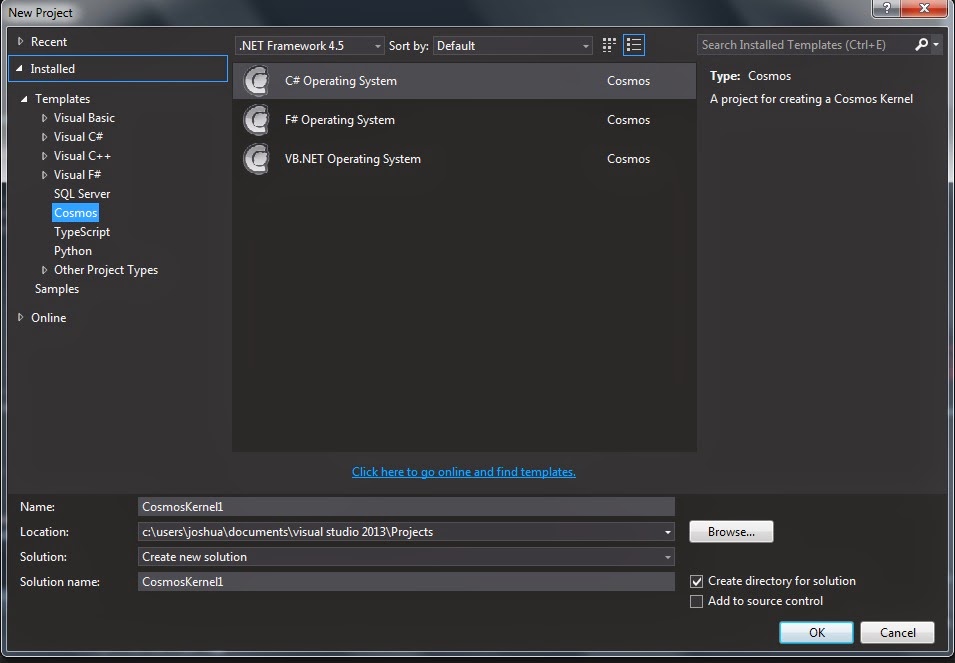
This is what your add project dialog should look like.
Ok, enough of that. let's get started! First head over to http://cosmos.codeplex.com/ and click on the big purple download button. Before you proceed, make sure you have installed Visual Studio and have run it at least once). After it finishes downloading, run it. Make sure you are on an administrative account or it won't work. If it gets stuck around the 100% mark, don't worry. This is normal. Once it finishes, open up Visual Studio and click File->New->Project. On the left hand side, look for an item that says Cosmos. Click on it then look at the big window with the icons. Click the one that has C# in it (make sure it is the C# one, or else you're going to have a bad day). Name it and select a folder to save it to (make sure it gets its own folder, there are a lot files in there that we are going to need). Now we can get coding!
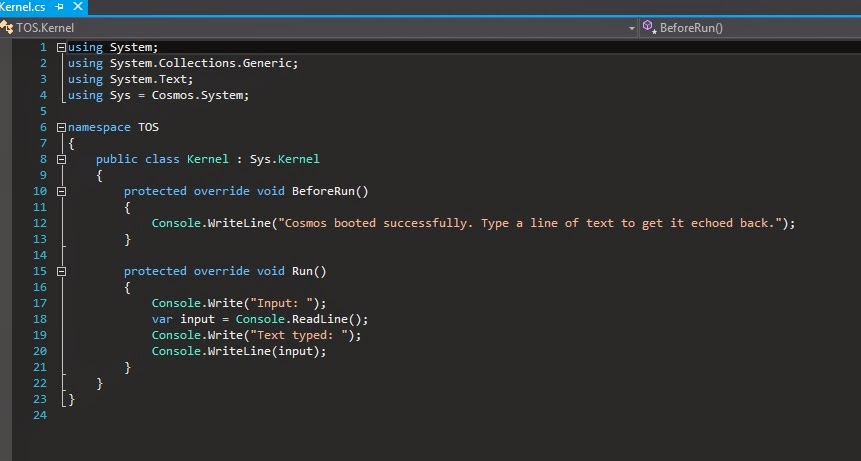
The default code that loads with the template
Once your project loads, you will see some code. To the average programmer, this code is nothing new. To someone who has never typed a line of code, this could look pretty frightening. DON'T PANIC! If you get really lost (or lazy), you can just delete all of that code and copy and paste the finished code at the bottom.
But before we start changing the code, let's just run the default code and see what it does. If you look at the toolbars at the top of the screen, you should see a green arrow.
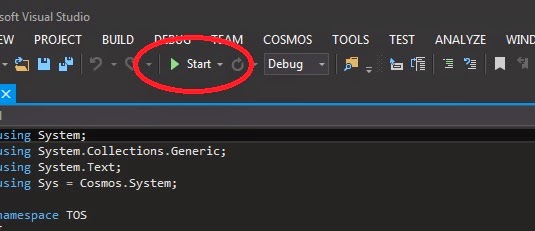
Next to it should be some text (Launch, Debug or Start are the most common, it depends on which version of Visual Studio you are running). Click the green arrow. It can take some time to compile (on my six year old machine, it takes about one or two minutes). Once done, you should see VMware Player pop up. If you see VMware, skip the next paragraph.

If not and you got an error, it could be one of two things. One, you edited the code. To fix this, go back and create a new project. Or two, you decided to not install VMware and use your own Virtual Machine or even use your own machine. In this case, navigate to your project directory and look around for a .ISO file. You can plug this into your own Virtual Machine or burn it to a CD or USB drive and try it on a real machine. You could also try to network boot it, but you will need your own tools (the integrated PXE server has been removed from Cosmos).

Now you should see a bunch of text followed by:
Cosmos booted successfully. Type a line of text to get it echoed back.
Congratulations! You have created your first operating system! Stay tuned for my next article where we will jump strait in and add mouse support with only a few lines of code! If you run into any trouble, leave a comment and any one of our authors will help you. Go to part two here -> http://allstuffnerdy.blogspot.com/2014/05/cosmos-part-2-lets-make-shell.html. If you are more experienced at programming, head over here http://www.codeproject.com/Articles/99928/Develop-Your-Own-Operating-System-in-C-or-VB-NET. They cover everything that I covered in this article, but they also go over the advanced debugging features in Cosmos that you may find handy to use at one point or another. Have Fun!

Hey blog readers! If you want to follow our meaningless updates, check out our pages here:
Facebook: http://on.fb.me/U9s2Ld
Twitter: Follow us @allstuffnerdy
Google+: https://www.google.com/+AllstuffnerdyBlogspot
If you have a business you would like us to mention at the beginning of a post, check out our gigs on Fiverr:
Joshua: http://fiverr.com/armmaster17
Brandon: http://fiverr.com/maltzy

Tuesday, March 18, 2014

Ergonomic mouse-the next generation of mice.

Dr. Engelbart holding the first mouse.
gajitz.com
Many of us weren't around when the first mouse was invented in 1964 by Dr Engelbart, But it would be a technology that would forever change the way humans interact with computers. Instead of being bound by a keyboard, we could be able to select anything on the screen instead of having to navigate a maze of buttons with the arrow keys or memorizing hundreds of commands. Unfortunately, the general concept of the mouse hasn't changed. It doesn't look much different than it did 20 years ago. And the current design can cause wrist problems in people who use computers frequently, and in this day and age, that's just about everyone. When we use a mouse, most people tend to rest their palm on the back part of the mouse which in turn makes their wrist bend. When you move
City Ergonomic's DXT Mouse 2 Wireless
cityergonomics.com
the mouse, your wrist doesn't really move, you just move your arm. Keeping your wrist in this posture for years can begin to cause painful and expensive problems in your hand, fingers, wrist, and even your arm. However, this company cityergonomics.com has redesigned the mouse to be much more practical. It's part of a new type of mice known as an ergonomic mouse. Ergonomic mice are defined as mice that are designed to reduce risk of problems such as carpals tunnel syndrome that can originate from using mice. Ergonomic mice are also designed to fit the natural shape of the hand better than tradition mice to provide more comfort. Examples include gaming mice since they are very well adapted to fit peoples hands (but they promote the constant use of a mouse, which is what's going to wear down your wrists). City Ergonomics call their new mouse the DXT. At first look, it doesn't look much like a traditional mouse. It is designed so that you hold it sideways, similar to the way you might hold a joystick (or a pencil if you are left-handed). The size of the mouse itself is about the size of your palm. The design of the mouse makes your wrist move more than when you hold a traditional mouse, which in turn can prevent many joint problems later on. The design of it allows for much more accuracy. The newer version of the mouse, the DXT 2, can support 2000 DPI (Dots Per Inch) to allow for more accuracy when trying to select something particularly small or buried in a pile of clickable objects. This can be helpful in CAD programs, FPS games, Strategy games, image manipulation programs, painting programs, writing/note taking programs, and so much more. The DXT comes in two models: wired and wireless. The wireless version has a built-in rechargable battery. The battery can be charged in 90 minutes with a standard micro-USB cable (most likely the same one you use to charge your phone). It even has a rapid-charge mode, where after being plugged in for 30 seconds, it can power itself for 2 hours. After being fully charged, the battery will last you approximately two weeks under normal usage. The wireless adapter will work from about 30 feet (about 10 meters) away. No drivers are needed since they use the generic USB pointing device drivers provided with every modern operating system. And the mouse is built to last with a sturdy construction out of zinc and strong plastic.  Pricing is around $100 USD depending on which country you live in and which model you want. Pricing it in the hundreds puts it with high-quality gaming mice. But with a design to save your wrists, it can save you thousands of dollars down the road.

Friday, March 09, 2012

Must have, nerdy finger mouse!

Get your own finger mouse at amazon.com Use it to impress your friends and reduce the amount of work it requires to use your computer!
 
Hey blog readers! If you want to follow our meaningless updates, check out our pages here:
Facebook: http://on.fb.me/U9s2Ld
Twitter: Follow us @allstuffnerdy
Google+: https://www.google.com/+AllstuffnerdyBlogspot
If you have a business you would like us to mention at the beginning of a post, check out our gigs on Fiverr:
Joshua: http://fiverr.com/armmaster17
Brandon: http://fiverr.com/maltzy